2010年3月21日 星期日

Google App Engine

1.申請「應用服務引擎」帳戶

1.1.用google帳號登入

1.2.點選Create an Application
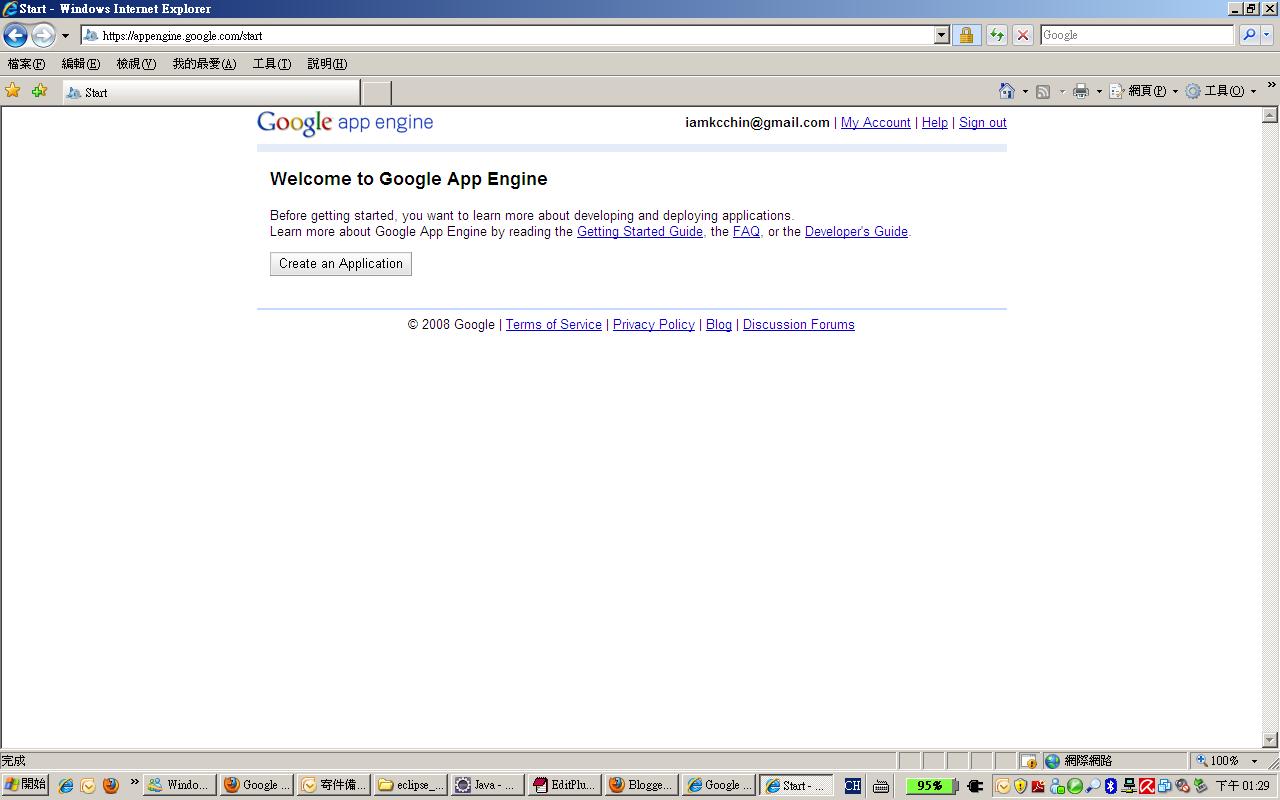


1.3.輸入手機號碼,格式為+886918123456(省略第一個0),申請完成後,google會回傳一封認證的簡訊到你的手機


1.4.輸入認證碼


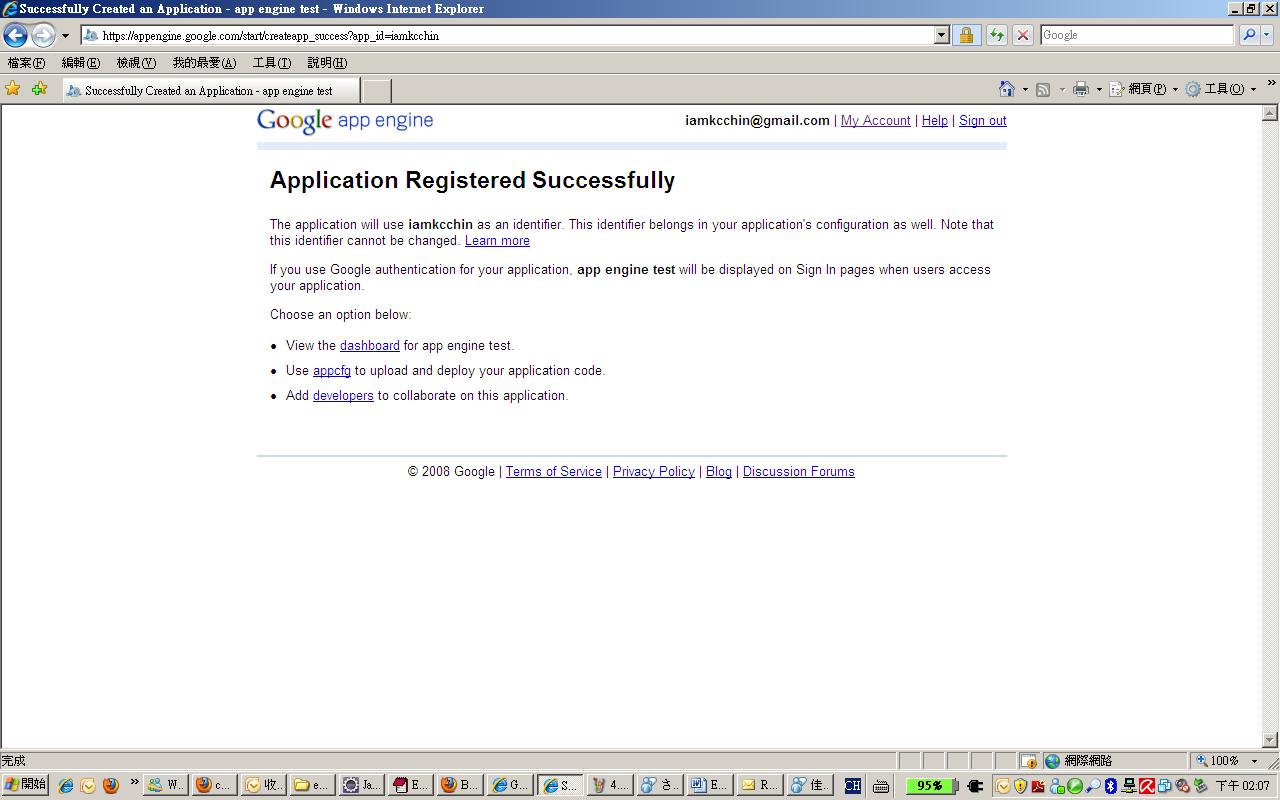
1.5.輸入Application資訊


1.6.完成


2.建立開發環境

2.1.下載Eclipse

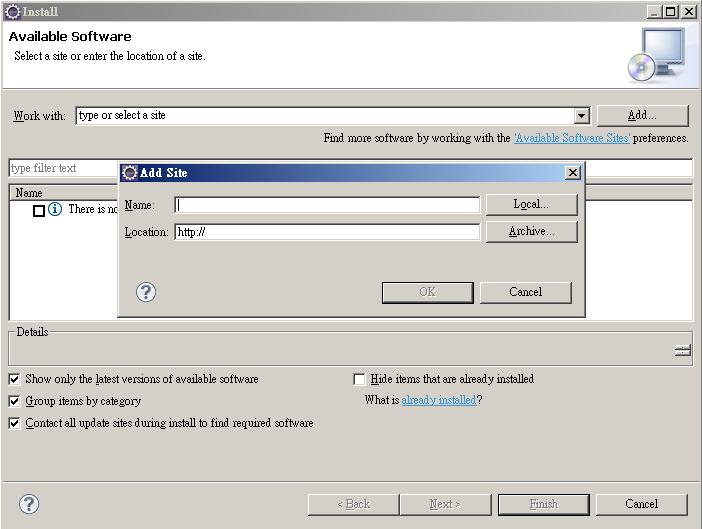
2.2.下載和安裝Google Plugin for Eclipse and Google App Engine Java SDK

選擇上方Menu的Help->Install New Software,按下Add按鈕後,會出現Add Site視窗, Name隨便輸入,Localtion請輸入http://dl.google.com/eclipse/plugin/3.5


3.建立一個新的專案

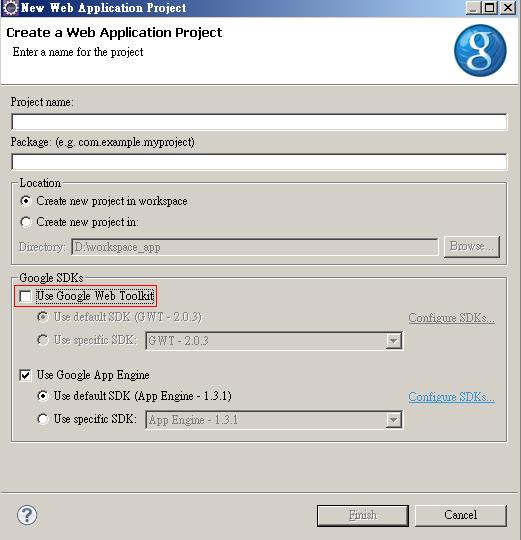
選擇上方Menu的File->New->Web Application Project,Use Google Web Toolkit請不要勾選


4.撰寫第一個程式

專案建立時,預設會建立一支servlet,寫一段簡單的程式
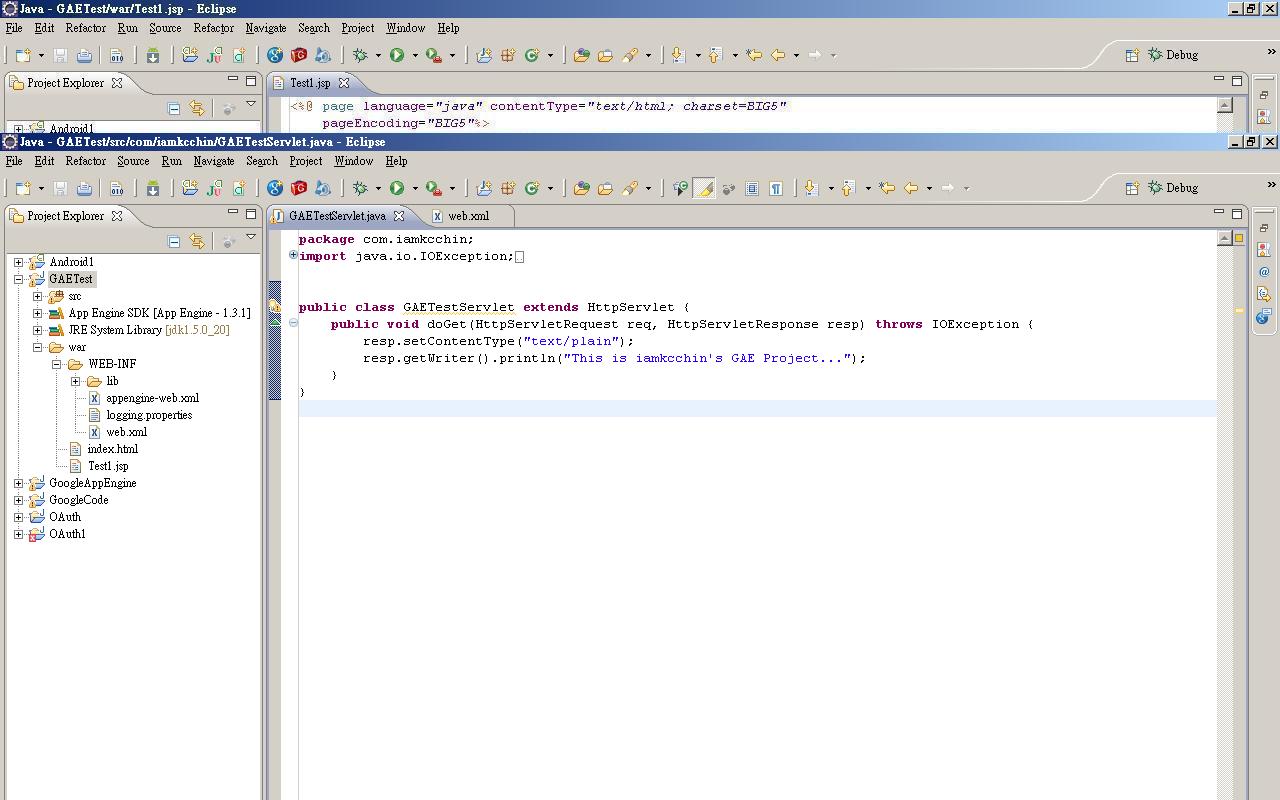


5.測試

5.1.在專案上按滑鼠右鍵,選擇Run As->Web Application把server給run起來


5.2.console視窗會顯示server啟動訊息
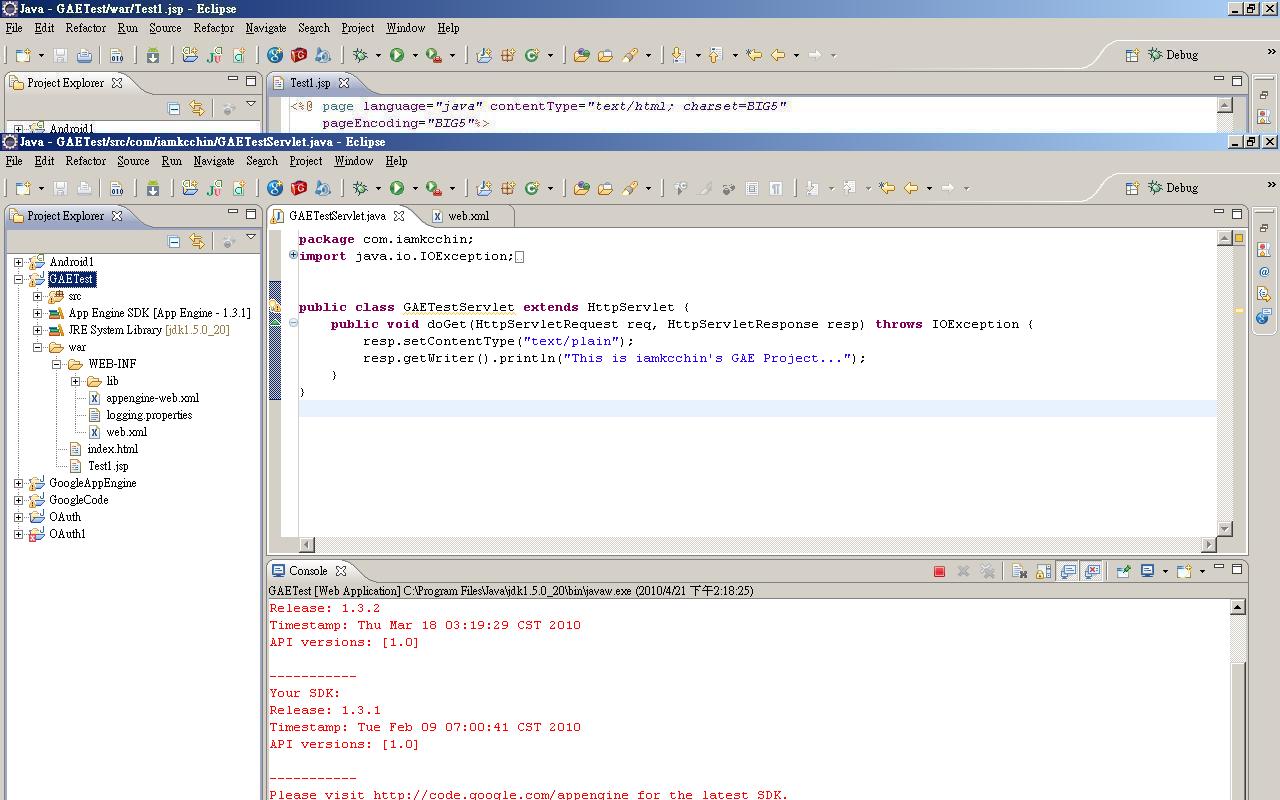


5.3.開啟browser看程式執行結果


6.Deploy

6.1.透過管理網頁https://appengine.google.com/看一下application現況,現在Current Version顯示None Deployed


6.2.設定Application ID

在專案上按滑鼠右鍵,選擇Properties->Google->App Engine,Application ID需和在google申請的Application Identifier相同
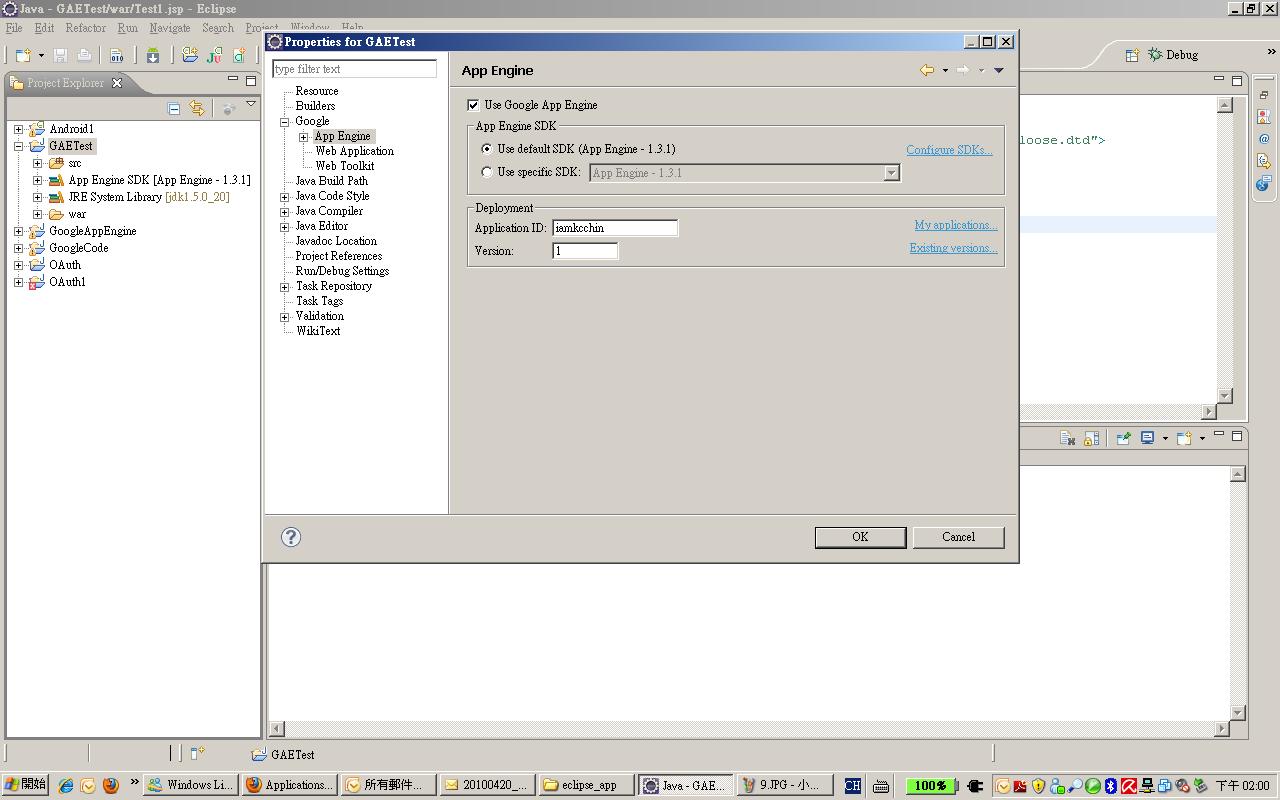


6.3.Deploy

按下Deploy App Engine Project的按鈕


輸入Email和password後,按下Deploy按鈕


Deploy過程中,console視窗會顯示deploy相關訊息


出現Deployment completed successfully代表deploy成功了


6.4.透過管理網頁https://appengine.google.com/看一下application現況,現在Current Version顯示1


6.5.在browser輸入http://iamkcchin.appspot.com/gaetest看到專案已經可以成功運作了

2010年3月18日 星期四

Oracle SQL小技巧


改變日期格式
ALTER SESSION SET NLS_DATE_FORMAT = 'MM/DD/YYYY';

2010年3月17日 星期三

完整移除Oracle


1.停止所有以Oracle開頭的服
   開始/控制台/系統管理工具/服務

2.使用Oracle Universal Installer來移除所有已安裝的Oracle產品。
   開始/所有程式/Oracle Installation Products/Universal Installer)移 除後,還有存有 
   OracleOraHome92TNSListener及OracleServiceORDB的服務

3.刪除Oracle的登錄檔registry
   開始/執行 /regedit進入[登錄編輯程]
   3.1.刪除 HKEY_LOCAL_MACHINE\SOFTWARE下的ORACLE目錄
   3.2.刪除 HKEY_LOCAL_MACHINE\SYSTEM\CurrentControlSet\Services下ORACLE相關登錄資料夾
   3.3.刪除 HKEY_LOCAL_MACHINE\SYSTEM\CurrentControlSet\Services\Eventlog \Application下的ORACLE相關
         登錄資料夾

4.刪除在 C:\Program Files下的ORACLE的目錄

5.刪除資料庫目錄c:\oracle

2010年3月16日 星期二

在WAS上建立第二個instance

Step1.備份原來的設定檔
1.1.停止websphere
1.2.c:\websphere\appserver\bin\backupconfig.bat
1.3.啟動websphere

Step2. 建立第二個instance
   2.1.C:\WebSphere\AppServer\bin\wsinstance\wsinstance.bat -name server1 -path   
   2.2.C:\WebSphere_Test\AppServer -host srmportal -create 

Step3.啟動第二個instance
   3.1.C:\WebSphere_Test\AppServer\bin\ setupCmdLine.bat
   3.2.C:\WebSphere\AppServer\bin\startServer.bat

Oracle資料庫的匯出和匯入

匯出

1.將資料庫TEST匯出,帳號system 密碼manager 匯出到D:\daochu.dmp中
   exp system/manager@TEST file=d:\daochu.dmp full=y
2.將資料庫中system用戶與sys用戶的表匯出
   exp system/manager@TEST file=d:\daochu.dmp owner=(system,sys)
3.將資料庫中的表table1 、table2匯出
   exp system/manager@TEST file=d:\daochu.dmp tables=(table1,table2) 
4.將資料庫中的表table1中的字段filed1以"00"開頭的資料匯出
   exp system/manager@TEST file=d:\daochu.dmp tables=(table1) query=\" where filed1 
   like '00%'\"
 
  
匯入
1.將D:\daochu.dmp 中的數據匯入 TEST資料庫中。
   imp system/manager@TEST  file=d:\daochu.dmp
   如果table已存在,在後面加上 ignore=y 就可以了。
2.將d:\daochu.dmp中的表table1 匯入
   imp system/manager@TEST  file=d:\daochu.dmp  tables=(table1) 

Tomcat設定startup.bat

1.set CATALINA_HOME=C:\tomcat

2.set JAVA_HOME=C:\j2sdk1.4.2_08

3.set CATALINA_OPTS=-Xmx256m -Xms128m

2010年3月15日 星期一

Tomcat設定JNDI DataSource

1.在 tomcat\conf\server.xml加入以下內容

<GlobalNamingResources>
    <Resource name="UserDatabase" auth="Container" 
                    type="org.apache.catalina.UserDatabase"
                    description="User database that can be updated and saved"
                    factory="org.apache.catalina.users.MemoryUserDatabaseFactory"
                    pathname="conf/tomcat-users.xml" />
    <Resource name="jdbc/SRMDS" auth="Container"  
                    type="javax.sql.DataSource"
                    maxActive="100" maxIdle="30" maxWait="10000"
                    username="mfcs_admin" password="mfcs_admin"
                    driverClassName="oracle.jdbc.driver.OracleDriver"
                    url="jdbc:oracle:thin:@localhost:1521:SRM"/>
</GlobalNamingResources>

2.在 tomcat\conf\context.xml加入以下內容

<Context>
    <WatchedResource>WEB-INF/web.xml</WatchedResource>
    <ResourceLink name="jdbc/SRMDS" global="jdbc/SRMDS" type="javax.sql.DataSourcer"/>
</Context>

3.JNDIName -> java:comp/env/jdbc/TestDB